The website
The bot serves a website of its own. It is part of the WebService, switched on with
frontend: true in config/services/webservice.yaml, and it has a login of its own — which is what
makes a non-Discord installation fully operable.
What is behind that login:
- a dashboard with every server, its state, players and uptime
- a server page: start, stop, restart, update, live state, missions
- players and their per-player statistics, bans, and the audit log
- the node's settings, its instances, mods and the music library
- the configuration pages, which write the same YAML files you would edit by hand
- plugin pages: plugins register their own through the WebService, so the menu grows with the plugins you enable
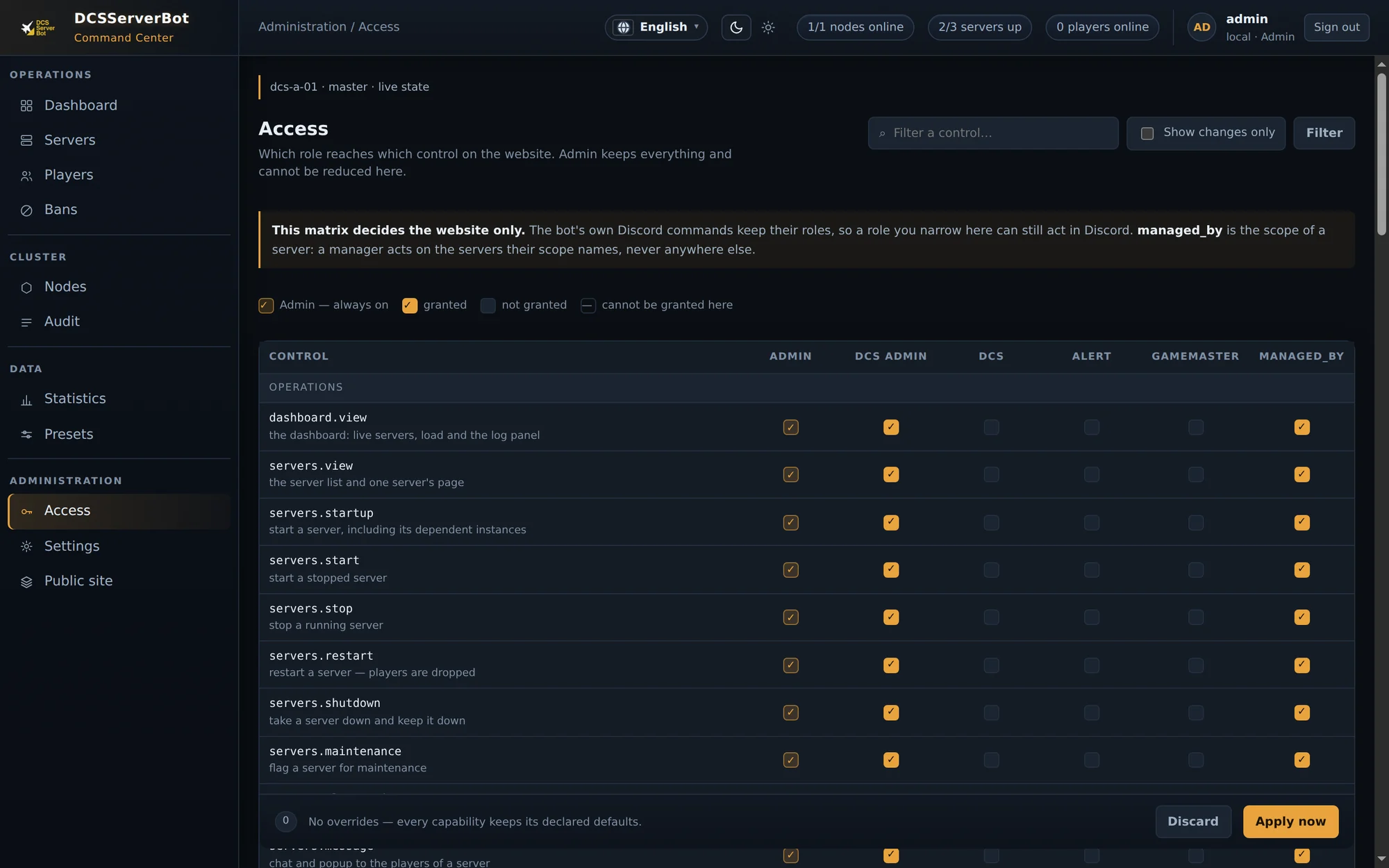
Which role may reach which control is the Access page — a matrix per role, with Admin always on:
Signing in
An anonymous visitor to any guarded page — the site root included — is shown this console's own login page, carrying the page they were refused on. The page renders a door for every sign-in method the installation has enabled: a username/password form, a Sign in with Discord button, or both.
A Discord-only installation shows the same page, with only the Discord button on it: its own button
starts the OAuth flow, so the visitor always sees where they are signing in. Setting
auth.discord.auto_start: true in config/services/webservice.yaml (default false) restores the
immediate jump: a refused page then sends the visitor straight into the Discord provider, with no
page in between. The key has no effect when a username/password backend is configured — the login
page is where the visitor chooses, and the console never picks a door for them.
Mission list
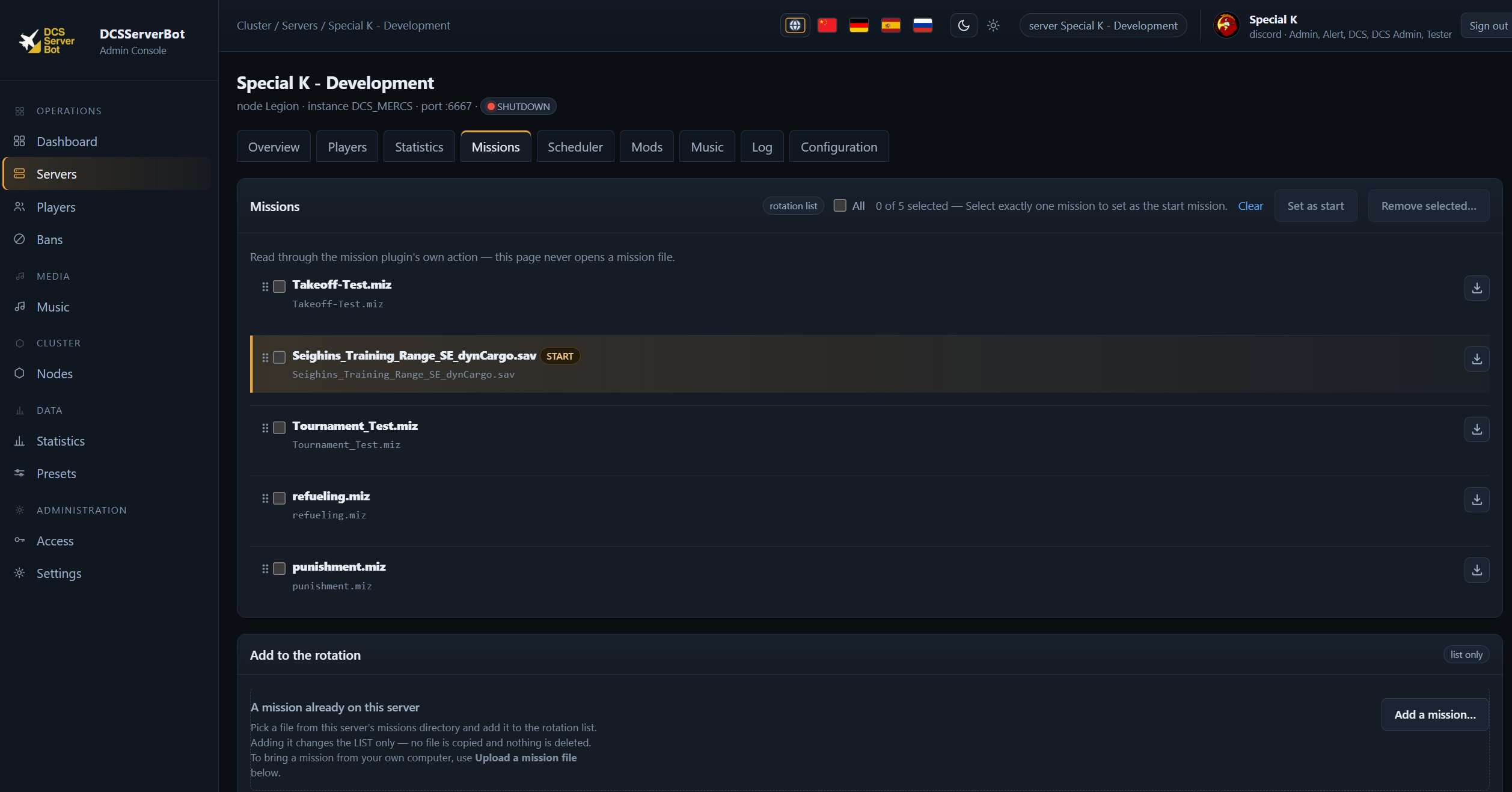
Choose the mission that starts next, order the rotation, upload new .miz files and remove ones you
no longer fly.
Scheduler
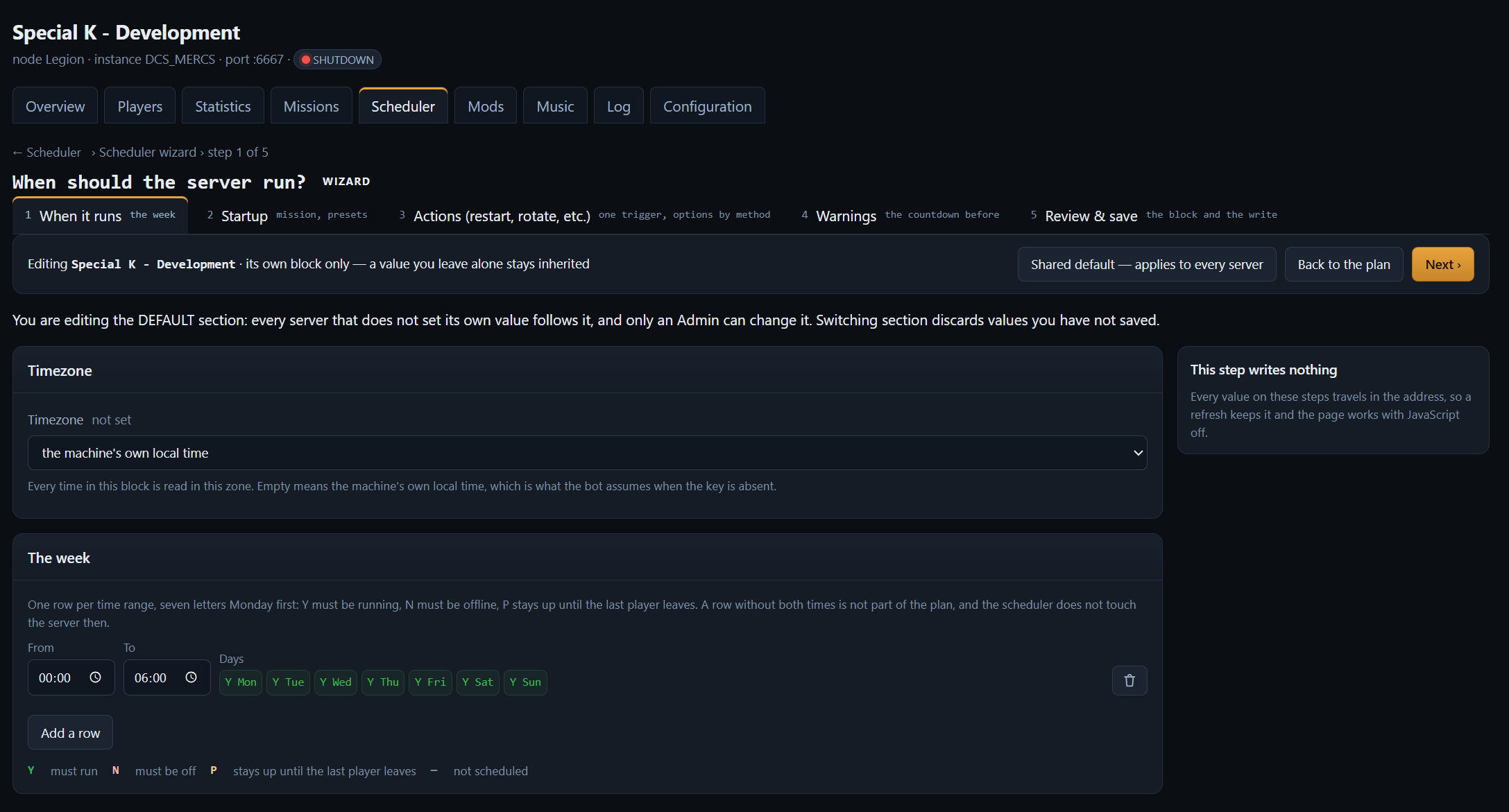
The wizard builds the schedule you would otherwise write by hand in config/plugins/scheduler.yaml:
a timezone, a table of hours against days, and for every cell whether the server must run (Y), must
be off (N) or stays up until the last player leaves (P). Five steps, then it saves the file.
Configuration pages
A save tells you what it costs before you make it: a plugin configuration reloads that plugin in
place and nothing restarts, while a change to main.yaml, nodes.yaml, servers.yaml or a service
configuration restarts the affected node. Configuration has the full table.
Public site (Settings → Public site) is the one page that sits between the two: its content —
title, copy, palette, sections, mark — is read per request and shows on the page at once, while the
structure of the installation's sites (a site added, its address, its on/off switch) takes the
console's apply, which rebuilds the site table in place without a bot restart. The page is also the
editor for config/site.yaml, with an Expert mode and an Add a site block at its foot. The
public site guide covers both.
Note
The website listens on the machine the bot runs on. If you reach it from outside, put it behind a reverse proxy with TLS — it is an admin interface, not a public page.
Setting it up
/webadmin setup in Discord is the shortcut: it asks for the address, the port and the login you
want, writes config/services/webservice.yaml itself and offers to rebuild the console — no file
editing at all. The guides below are the same setup by hand, with every step and every option.
- Quick start (Windows) — from "switched off" to a working login page in about five minutes, plus HTTPS on top
- Web frontend on Linux — Debian/Ubuntu or Fedora/RHEL
- Web frontend on Windows — nginx with win-acme, or Caddy
Beside the console, the same service can serve a public, read-only statistics site for your community — see Public site for turning it on, branding it, and embedding it in a website you already run.
A public site's footer
The footer is two things and nothing else: the product's attribution, Powered by DCSServerBot, and
the site's own links. The attribution is fixed and not configurable — it is literal text in the
site's shell template, the same wording in every language, with no key that sets it, shortens it or
hides it. A site adds branding.footer_links beside it (an http(s)/mailto URL or a path on this
installation), and those anchors are the whole of what a site can put in the footer. The old
branding.copyright key is accepted in an existing file but ignored.
A public site's palette
A site names its palette one of three ways, and at most one at a time: a shipped preset (brass,
slate, midnight, parchment), a .css file uploaded on the site's own settings card, or an
expert sheet written there. The uploaded file is stored with the site's assets
(config/site/theme.css) and is served exactly as written — nothing checks it, so it may carry
@font-face, url() and component rules, and the browser loads what it names from this
installation's own origin. It replaces the retired theme.stylesheet path field: you pick a file
instead of typing a path. The upload is limited to a .css name, UTF-8 bytes and 256 KB; a
re-upload replaces it, and removing it returns the site to its preset. The
public site guide has the keys and the rest.