Web Frontend – Quick Start (Windows)
The fastest way from "frontend is off" to a working login page, in about five minutes. It runs on the bot PC first, over plain HTTP, with a username and password. Step 3 puts it on the internet with real HTTPS once you are happy with it.
The full walkthrough — every option, Discord login included — is Web Frontend – Windows. Running the bot on Linux? Use the Linux guide.
Commands below are run in a Command Prompt opened in your DCSServerBot folder:
cd "C:\DCS Server\DCSServerBot"
Step 1 – Let the bot write the configuration (recommended)
You need the Admin role in Discord for this.
- Run
/webadmin setup. - In the reply, pick username and password in the "How do you want to sign in?" list.
- Fill in the form it opens:
| Field | What to enter |
|---|---|
| Port | 9876 (the default, keep it) |
| Public address | http://192.168.1.50:9876 — this PC's LAN IP, or http://localhost:9876 if only this PC should reach it |
| Username | admin |
| Password | At least 12 characters — this is the account you will log in with |
- Press Write the configuration. The wizard generates the session secret, turns the frontend on
and writes
config/services/webservice.yaml— nothing has to be typed by hand. - Press Restart the web console in the reply. That rebuilds the console inside the running bot; no bot restart is needed. If it reports a failure instead, restart DCSServerBot.
The message /webadmin setup opens, and the form that a sign-in mode opens behind it:
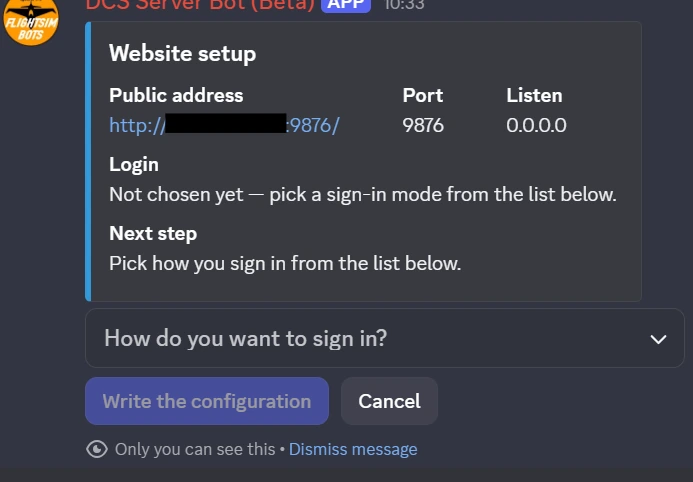
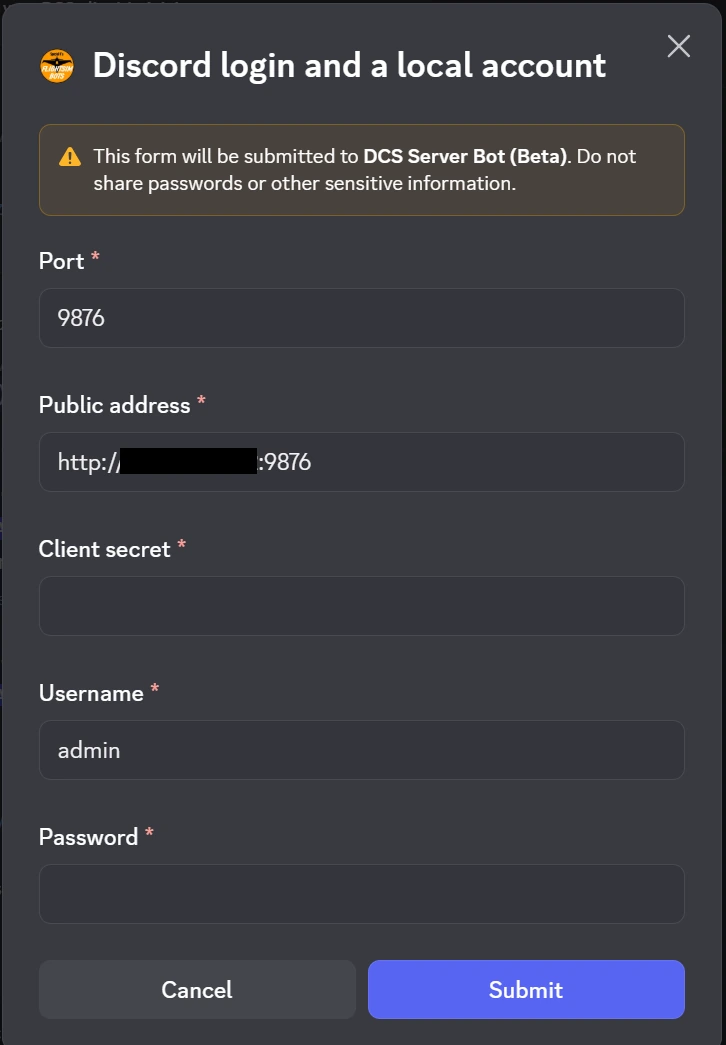
The message shows the address, the port and the listen setting the wizard is about to write. The form asks for them plus the login details — this one is the "Discord login and a local account" form, so it carries a client secret too. "username and password" asks the same fields without that one.
Then allow the port through Windows Firewall — in a Command Prompt as Administrator:
netsh advfirewall firewall add rule name="DCSServerBot Web" dir=in action=allow protocol=TCP localport=9876
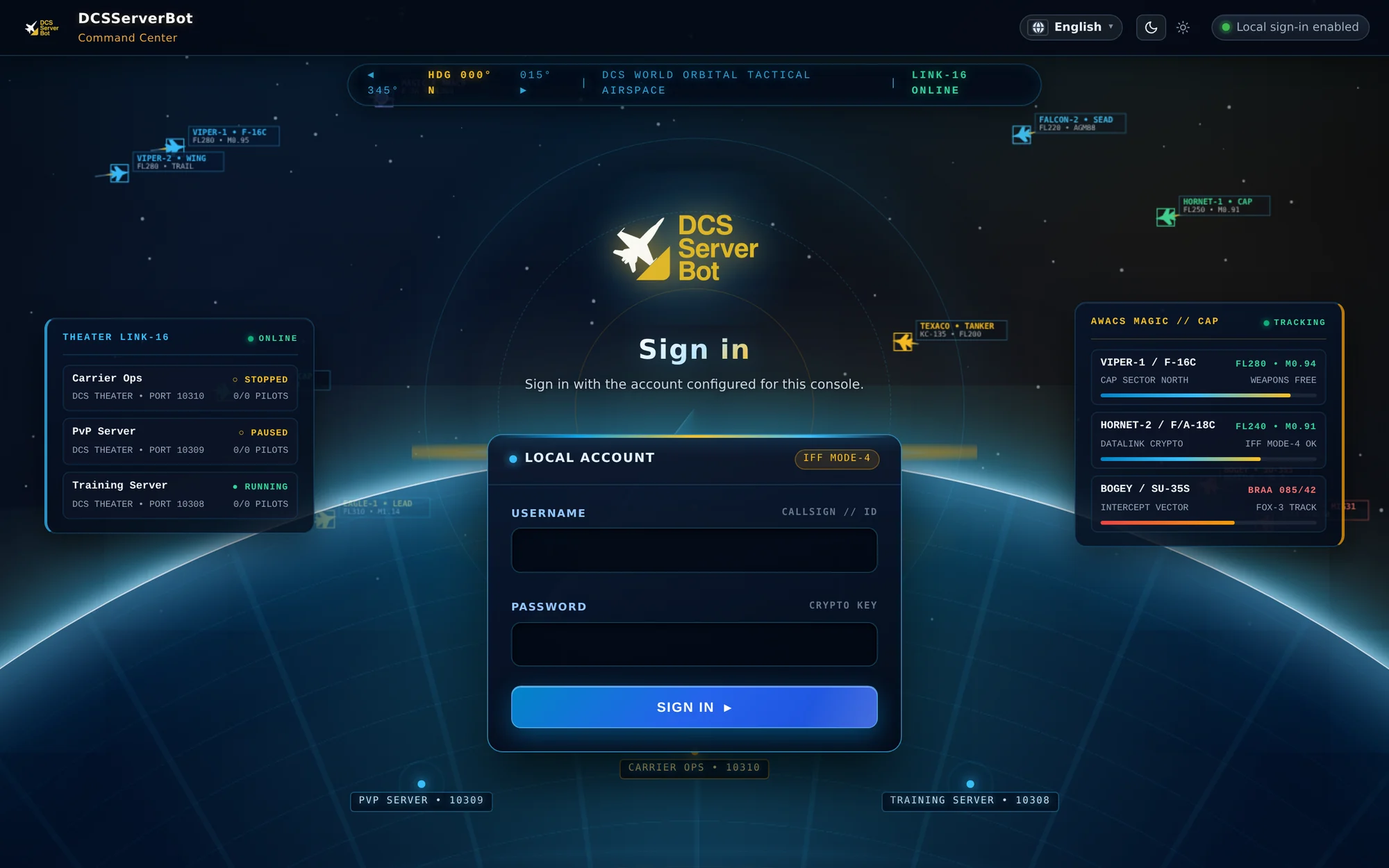
Open the address from step 3 in a browser on any PC in your network. You should see the sign-in page, and after logging in the dashboard.
Step 2 – Or write the file yourself
If you prefer to see the file, it is three commands and one file. %COMPUTERNAME% is your node name;
replace it if you installed with install.cmd -n MyNode.
a) Generate the session secret — it signs the login cookies, nobody types it in:
"%USERPROFILE%\.dcssb-%COMPUTERNAME%\Scripts\python" -c "import secrets; print(secrets.token_urlsafe(48))"
b) Create the first account — it asks for the password twice and prints the password_hash:
"%USERPROFILE%\.dcssb-%COMPUTERNAME%\Scripts\python" -m services.webservice.auth.local --hash --username "admin" --roles Admin
c) Save this as config/services/webservice.yaml, pasting the two values in:
DEFAULT:
  listen: 0.0.0.0           # 0.0.0.0 = reachable in your network; 127.0.0.1 = this PC only
  port: 9876
  debug: false
  frontend: true            # THIS ENABLES THE FRONTEND
  session:
    secret: '<secret from a)>'
    https_only: false       # plain HTTP: must be false, or logins don't stick
  auth:
    public_base_url: http://192.168.1.50:9876   # the address you type in the browser
    local:
      enabled: true
      users:
        - username: admin
          password_hash: '<hash from b)>'
          roles: [Admin]
An existing file means the service is already on — edit it instead of replacing it, or you lose the accounts, keys and comments it carries.
Restart DCSServerBot, then open http://192.168.1.50:9876 (use your own address).
Caution
Never forward port 9876 on your router. From outside your network, use Step 3.
Step 3 – Put it on the internet with HTTPS
Discord login requires HTTPS, and local users should have it too as soon as they leave your LAN. Caddy is the short route: one program, one small file, certificates handled by itself.
- Prepare it like a real address. A DNS A record for e.g.
bot.example.compointing at your public IP, ports 80 and 443 forwarded to the bot PC, and — as Administrator:
netsh advfirewall firewall add rule name="Caddy HTTP" dir=in action=allow protocol=TCP localport=80
netsh advfirewall firewall add rule name="Caddy HTTPS" dir=in action=allow protocol=TCP localport=443
-
Download Caddy for Windows (amd64) from https://caddyserver.com/download, unzip it to
C:\caddy, and rename the exe tocaddy.exe. -
Create
C:\caddy\Caddyfile(no extension — in Notepad choose "All Files" when saving):
bot.example.com {
    reverse_proxy 127.0.0.1:9876
}
- Point the bot at the proxy. Three values change in
config/services/webservice.yaml:
# config/services/webservice.yaml
DEFAULT:
  listen: 127.0.0.1                          # was 0.0.0.0 or your LAN IP
  session:
    https_only: true                         # was false
  auth:
    public_base_url: https://bot.example.com # no port, no trailing slash
frontend: true stays as it is.
- Start it as Administrator, and watch it fetch the certificate:
cd /d C:\caddy
caddy run
Then open https://bot.example.com from your phone on mobile data. Once it works, stop Caddy
with Ctrl+C and install it as a service so it survives a reboot:
sc.exe create caddy start= auto binPath= "C:\caddy\caddy.exe run --config C:\caddy\Caddyfile"
sc.exe start caddy
Prefer nginx, or need the certificate tooling step by step? That is Step 3 of the full guide, which covers nginx with win-acme and explains every answer it asks for.
What you should see
The dashboard after signing in — every server of every node, its state, mission and players:
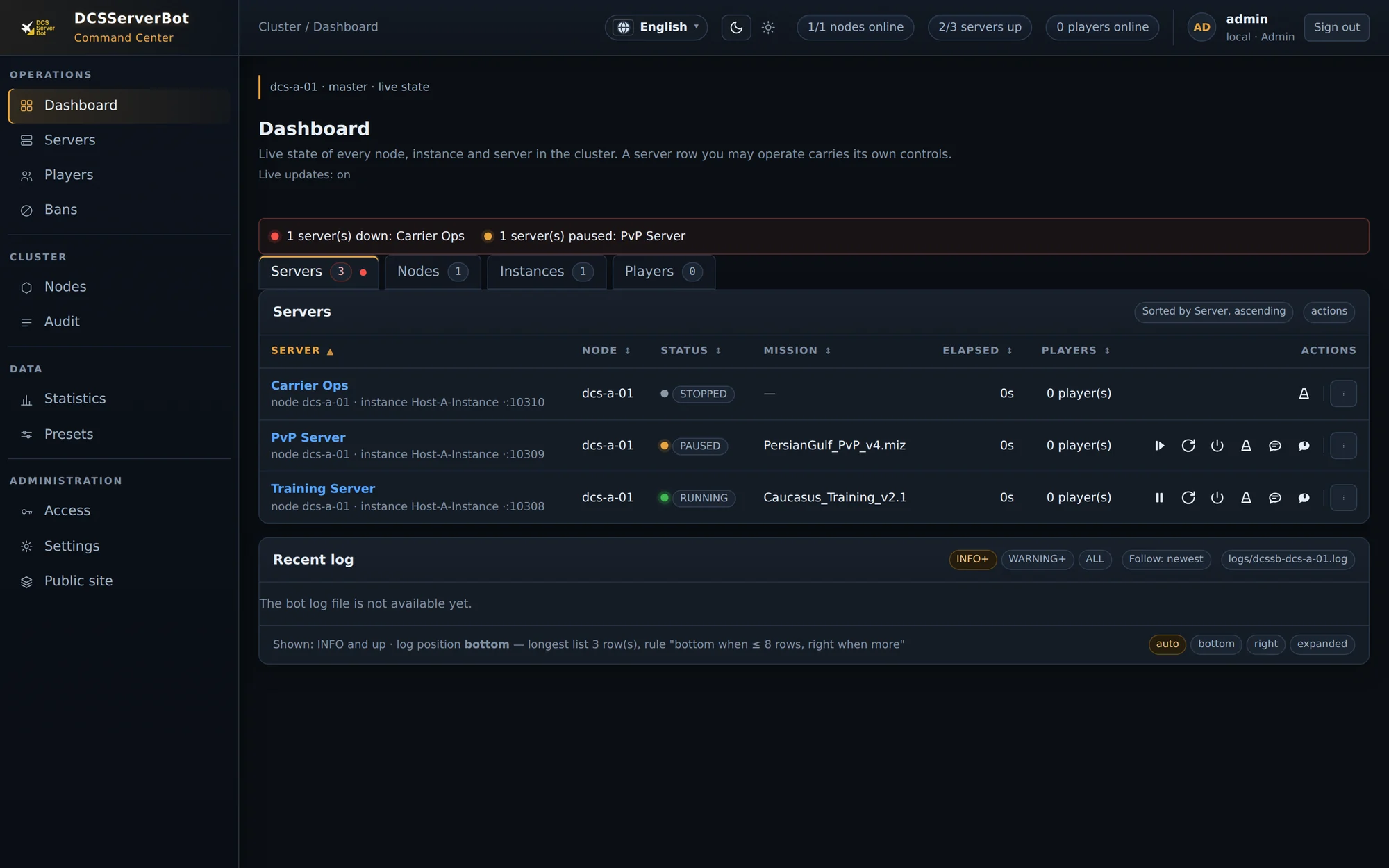
The Servers page carries the controls themselves — start, stop, restart, update, mission list and chat — on the row of any server your role may operate:
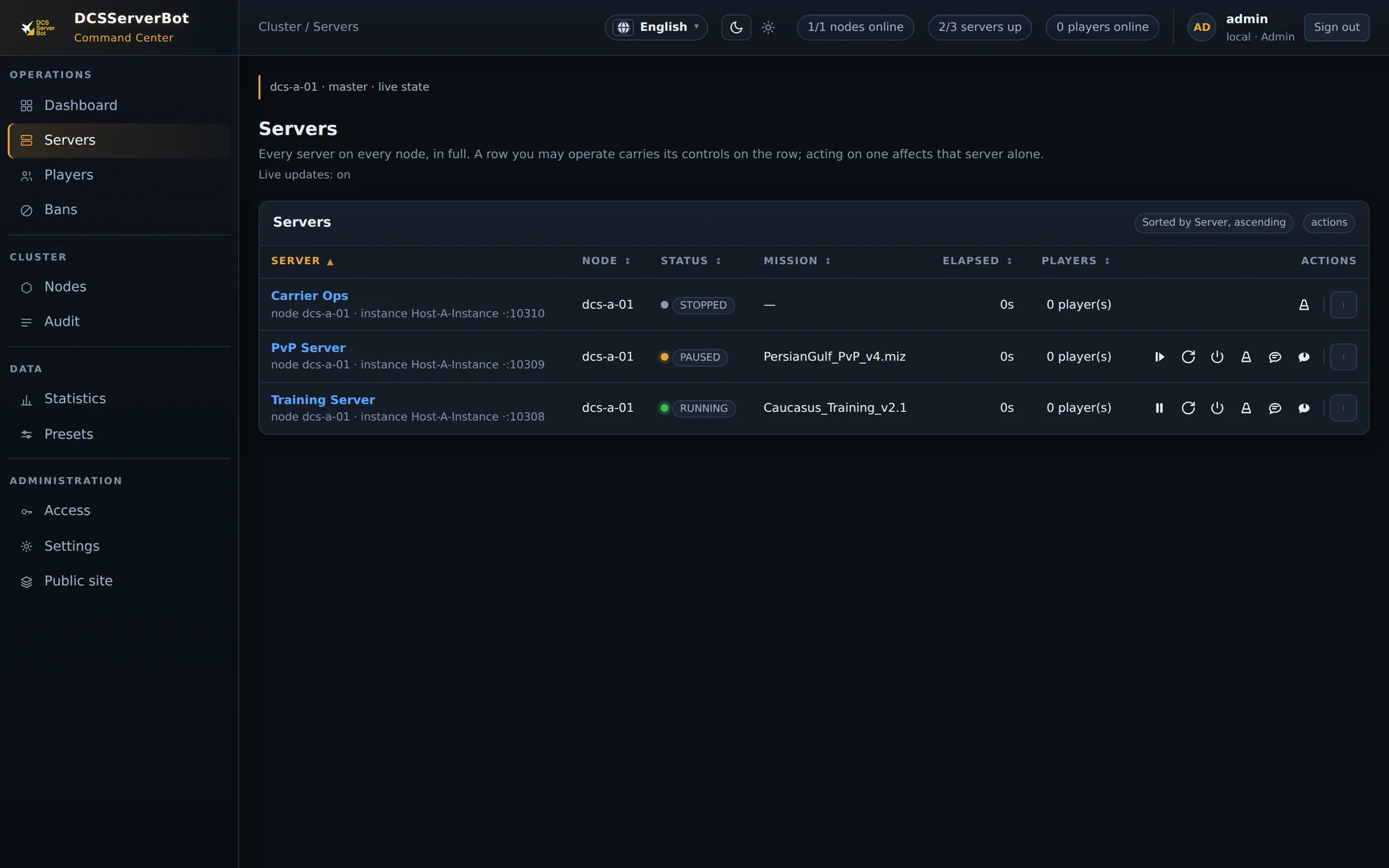
Give other people access: /webadmin user add in Discord creates another local account, and
/webadmin user password changes one — press Restart the web console afterwards, because the
account list is read when the console starts. The console's own Access page then decides which
role may reach which control — admins keep everything and cannot be reduced there.
If it doesn't work
| Symptom | Fix |
|---|---|
'python' is not recognized |
Use the full "%USERPROFILE%\.dcssb-%COMPUTERNAME%\Scripts\python" path |
The system cannot find the path specified |
Your node name is not your computer name — replace %COMPUTERNAME%, or look for the .dcssb-… folder in %USERPROFILE% |
| Page loads on the bot PC but not from other PCs | The firewall rule is missing, or listen is still 127.0.0.1 |
| Login succeeds, then you are back on the login page | https_only does not match how you connect: false for http://, true behind HTTPS |
| 502 Bad Gateway from Caddy or nginx | The bot is not running, or proxy_pass / reverse_proxy does not name the port: from webservice.yaml |
The full guide's troubleshooting table covers the rest — Discord redirect errors, expired certificates, port 80 already taken, and more.
Security notes
- Only ports 80 and 443 ever get forwarded on your router, and only to the reverse proxy.
webservice.yamlholds the session secret, the client secret and the password hashes — keep it private, and keepC:\caddy(orC:\nginx\certs) private too.- Use
debug: falseunless you are troubleshooting.